商铺公告
商品分类

商品推荐

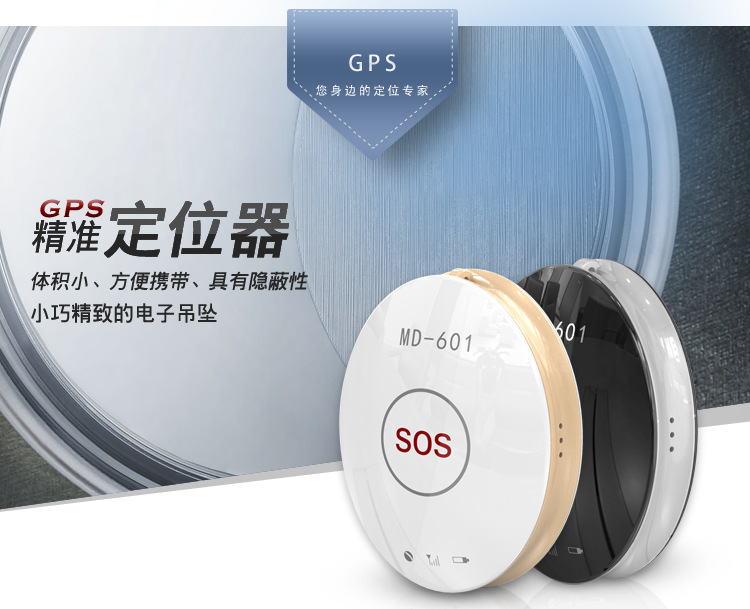





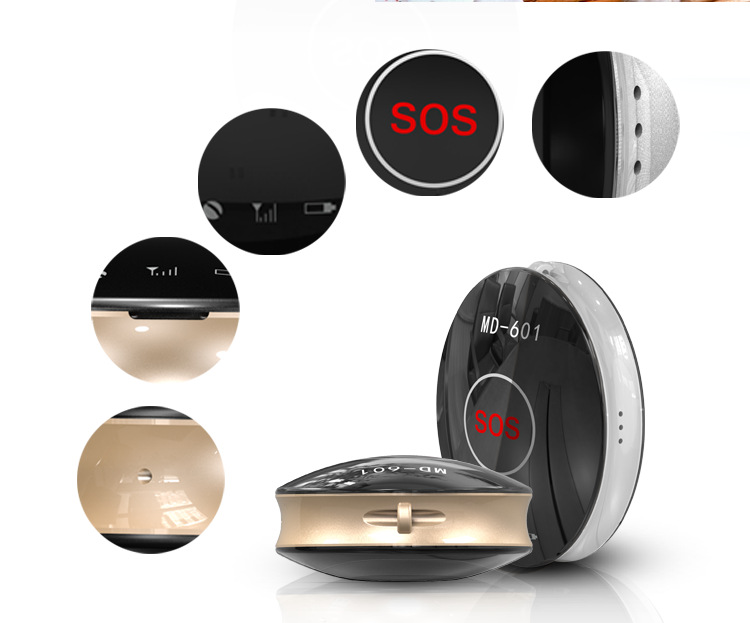




请您在使用之前认真阅读使用说明书,以便正确安装和快速使用,产品请以实物为准!
一、使用前准备
检测设备型号是否正确,配件是否齐全。
选择GSM网络的SIM卡,参考经销商的意见。(装卡前请先关机)
SIM卡需要开通GPRS功能和来电显示功能。
在手机端安装APP客户端,客户端详情可询问你的经销商
二、产品功能
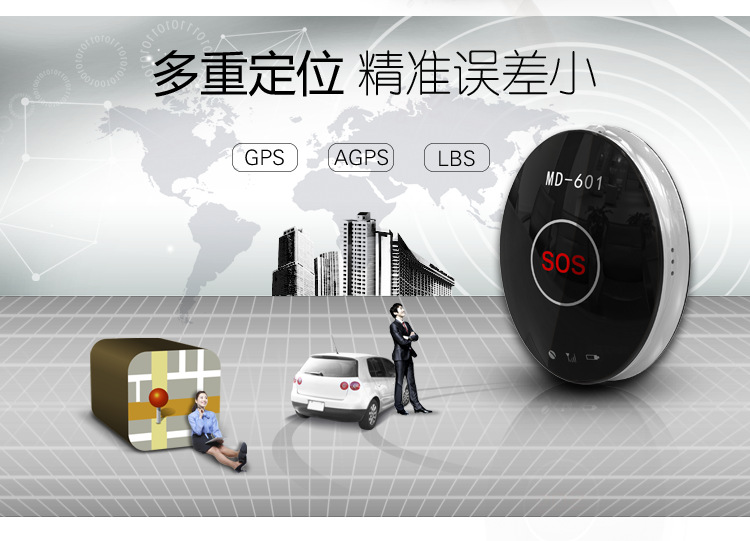
l 多重定位模式:GPS+ AGPS+LBS+WIFI
l 全球通用GSM+GPRS四频系统:850/900/1800/1900MHz
l 时间自动更新:GPS准确授时,无需手动调整时间
l 定位查询:可通过手机APP或者电脑查询使用者的具体位置
l 电子围栏:以设备为中心在地图划定一个区域,出入区域马上报警
l 历史轨迹:随时随地查询设备三个月内运行轨迹
l SOS求救:遇到紧急情况,按下SOS键,即对监护人发出求救电话与信息
l 计步器:可计量使用者的行走数据
l 奖励:通过监护人手机APP发出奖励,可查看奖励进度
l 找设备:设备丢失可通过手机APP找到设备
l 闹钟:通过监护人手机APP来设定
l 防打扰模式:通过监护人手机APP设定勿扰时间范围,设备屏蔽语音及来电
l 远程拾音:高灵敏度的麦克风,在使用者出现紧急状况时实时聆听设备周边的声音
l 远程关机:通过监护人手机APP可实现设备关机功能
l 远程重启:通过监护人手机APP可实现设备重启功能
l 智能省电:通过监护人手机APP设定时间范围,设备关闭/打开GPS和数据上传
三、客户端操作说明
5.1 APP登录
1. 需要通过设备IMEI号和密码(出厂默认为123456)手动输入登录(IMEI号详见设备侧面)
2. 输入监管人的名称,电话号码,选择代表自己的图像
监管人名称/头像显示在对讲中。电话号码为远程聆听号码。
界面如下:
5.2 APP功能菜单
登录完成,进入功能主界面。
界面如下:
按 选择需要监察的设备
按 左边名称可查阅修改设备详情
按“+””-”可增加/删除设备
功能说明:
1、远程拾音:设置监管号码,确定后设备主动给设置的号码拨号,设备不能听到手机的声音,手机可以聆听设备周围的声音
2、信息:
设备各种报警之后,客户端会收到报警信息推送,可进入信息功能查看报警内容。
3、定位:实时查看设备的位置。
地图界面可显示设备的位置,上传间隔出厂默认为10分钟。
当图标为是基站定位,是GPS定位,是WIFI定位。
按 变更地图模式
按 进入功能设置
4、轨迹:可查阅3个月内历史轨迹(绿色水滴为/GPS,蓝色水滴为LBS,紫色水滴为WIFI)
5、安全范围:可设置3段安全范围,围栏最小半径为100米,当用户从围栏中到围栏外时(围栏外到围栏中)会产生出相对应名称范围报警信息。
6、找设备:设备不在身边,发送该指令,设备会响铃以方便寻找,按停止键停止响铃。
7、健康:记录过往7天步行数据,左右拖拉移动显示每天数据
按开关设备计步功能,按刷新设备计步数据
按里程可进入设置每步距离和体重计算行走里程和卡路里
8、闹铃:可设置3个闹钟,可以根据自己的需求设置闹钟。
9、免打扰时段:该时段内设备屏蔽所有电话及语音。
10、监管号码:可设置设备,SOS,爸爸,妈妈号码
11、考勤:在设置时间段?冉?入或离开地图?O置的位置或WIFI SSID时会发出报警推送提示
12、白名单:可设置47个可拨打设备的电话列表。
新增:按新增联络人键
?h除:长按联络人删除
13、奖励:输入奖励目标和次数,给予表扬
14、省电:可选择打开/关闭GPS定位,和在指定时间关闭数据上传
15、远程重启:当发现设备出现异常时可重启设备
16、远程关机:可实现设备关机,关机后必须手动启动设备才可实现下一步操作
17、设置:对设备进行设置。
四、设备相关使用说明
4.1 按键
1.长按3秒开机,无卡长按3秒关机,装卡后长按9秒关机
2.装卡后待机,长按3秒SOS紧急报警
3.相关电话来电时响铃,短按接听,再短按挂断
4.闹钟响铃时短按可停止
4.2 Led灯
红灯:充电常亮,低电快闪,正常慢闪,待机全灭
黄灯:设备SIM卡信号检测,正常慢闪,没信号快闪
蓝灯:设备可收GPS信号,正常慢闪,没信号快闪
4.3 设备sos 紧急报警
装卡后待机,长按sos键3秒,循环拨打3个监管号码一轮。中间如果电话接通不会继续拨打,没有接听则一直拨打直到一轮结束。同时给APP发送报警通知。
4.4出厂密码
编辑短信“pwrst”发送至设备号码,恢复出厂密码。设备回复短信“清除密码成功”
4.5恢复出厂
编辑短信“1122”发送至设备号码,设备自动重启并回复短信“出厂设置成功”
4.6修改定位上传间隔
编辑短信“time#+数字 ”(time#1 可设置1-60分钟)发送至设备号码,回复短信“time#+数字”
五、 故障排除
设备首次开机无法连接至服务器,app发指令显示设备未联网。请检查:
1)检查SIM卡是否正确插入设备
2)设备里面的SIM是不是支持GSM网络,比如电信就不支持。
3)设备里的SIM卡是否开通数据流量,必须能兼容2G网络的数据流量,设备目前只能使用2G的数据流量。
4)IMEI是否正确,必须保证设备贴的IMEI条码和设备出厂写入的IMEI一致
六、 二维码扫描入口
扫描二维码可下载安卓和ios手机客户端
安卓应用 苹果应用
服务平台:www.365gps.net
安卓应用: 365gps
苹果应用: 365gps
9.远程管理
客户可用网上和手机平台直接管理和查看设备机所在位置、历史回放、设置围栏等功能
请到www.365gps.net网址以用户名或IMEI号登入平台默认密码123456
请到www.365gps.net/app/365gps.apk
3. iPhone手机
请到https://itunes.apple.com/cn/app/365gps/id1068418498?mt=8网址AppStore进行下载
Locator User Manual
Before using the locator, please read this User Manual carefully so as to install it correctly and use it quickly. The picture is for reference only and the actual product should prevail.
五、Preparation before use
Check whether the device model is correct and whether the accessories are all in readiness.
Select the SIM card of the GSM network by referring to the advice of your distributor. (Turn off the cell phone first before installing the SIM card)
The GPRS function and the caller ID display function should be subscribed for the SIM card.
Install the APP client onto your cell phone. Please consult your distributor about the detailed information on the APP client.
六、Product function
l Multiple Positioning Mode: GPS+ AGPS+LBS+WIFI
l Worldwide GSM+GPRS 4-frequency System: 850/900/1800/1900MHz
l Automatic Time Update: Precise GPS time service and no manual time adjustment is needed
l Track: The user's specific location can be inquired through the cell phone APP or the computer
l Fence: Designate an area on the map by setting the device as the center point and the alarm will be triggered off immediately once the user of the device goes into or out of this area
l PlayBack: Inquire the moving routes of the device in the past 3 months anytime and anywhere
l SOS: In case of emergency, press the SOS button and the device will send out the call and message for help to the guardian
l Walk: Counts the steps the user has walked
l Reward: The reward is sent out through the APP on the guardian's cell phone and the reward progress can be viewed
l Find Device: The lost device can be found through the APP on the cell phone
l Alarm: The alarm can set through the APP on the guardian's cell phone
l Anti-disturbance mode: Once the no-disturbance time range is set through the APP on the guardian's cell phone, the device will shield the voice messages and calls
l Voice: With the highly sensitive microphone, the sound around the device can be heard in real time in case the emergency happens to the user
l Remote Power-off: The device can be turned off through the APP on the guardian's cell phone
l Remote Restart: The device can be restarted through the APP on the guardian's cell phone
l Intelligent Power Saving: The device turns off/on the GPS and data upload in the time range specified through the APP on the guardian's cell phone
七、Client operation instructions
3.1 Log in APP
a. Log in the APP by inputting the device IMEI number and password (default password: 123456) manually (please refer to the side of the device for the IMEI number).
b . Input the guardian's name, telephone number and the representative icon.
The guardian 's name/icon will be displayed in the Intercom. The telephone number is the one for remote listening.
The interface is as follows:
3.2 APP function menu
After the login is completed, you can proceed to the main interface of the functions.
The interface is as follows:
Press to select the device that needs to be supervised.
Press the name at the left side of to view and modify the specific information about the device.
Press "+" or "-" to add/delete the device.
Function explanation:
(1). Voice: Set the supervising telephone number and after the confirmation, the device will call the already set telephone number automatically. The sound at the cell phone side cannot be heard at the device side, while the sound around the device can be heard at the cell phone side.
(2). Message:
After the device sets off various alarms, the client will receive the alarm message push and you can enter the information function to view the alarm content.
(3). Track: View the location of the device in real time.
The location of the device can be displayed at the map interface and the default upload interval of the location information is 10 minutes.
The icon represents the base station positioning, the icon indicates the GPS positioning and the icon means the WIFI positioning.
Press the icon to change the map mode.
Press the icon to enter the function setting.
(4). PlayBack: The routes in the past 3 months can be viewed (the green water drop represents GPS, the blue water drop indicates LBS and the purple water drop means WIFI).
(5). Fence: 3 fences can be set and the minimum radius of the fenced area is 100 meters; when the user goes out of the fenced area (into the fenced area), the alarm information about the corresponding area will be generated.
(6). Find Device: When the device is not by your side, you can send this command to ring the device so that you can find the device conveniently; press the Stop button the stop the ring.
(7). Walk: Records the step count data in the past 7 days and drag the interface leftward or rightward to display the daily data.
Press button to turn on/off the step counting function and press button to refresh the step count data of the device.
Press the Mileage button to enter the interface to set the distance of each step and the weight, and to calculate the walking distance and the calorie.
(8). Alarm: 3 alarms can be set and the alarm can be set according to your need.
(9). No-disturbance Time Interval: All the calls and voices will be shielded during this time interval.
(10). Supervising telephone number: The device number, SOS number, father's and mother's cell phone numbers can be set.
(11). Clocking-in: The alarm push prompt will be given off when the user enters or leaves the area specified on the map or the WIFI SSID in the set time interval.
(12). White List: 47 telephone numbers through which the device can be called can be set.
Add: Press the Add New Contact button
Delete: Press and hold the contact to delete it
(13). Reward: Input the incentive targets and the number of times so as to award the praise when they are reached.
(14). Power Saving: You can choose to turn on/off the GPS positioning and turn off the data upload in the specified time.
(15).Remote Restart:In case the abnormality of the device is found, you can restart the device.
(16). Remote Power-off: It can turn off the equipment; after power-off, only the equipment has been turned on manually can the next operation be realized.
(17). Setting: Set the equipment.
八、Related operation instructions of the equipment
4.1 Button
a. Press and hold the button for 3 seconds to turn on the device; if there is no SIM card installed, press and hold the button for 3 seconds to turn off the device; after the SIM card is installed, press and hold the button for 9 seconds to turn off the device.
b. After the SIM card is installed and the device is under the standby status, press and hold the button for 3 seconds to allow the device to set off the SOS emergency alarm.
c. When the call from the related telephone number comes in, press the button briefly to answer the call and press it again briefly to hang up.
d. When the clock rings up, press the button briefly to stop the ring.
4.2 LED
Red LED: It keeps lighting up during the charging, flashes quickly during the lower battery, flashes slowly during normal electric quantity and goes out completely during the standby.
Yellow LED: It is for detecting the signal of the SIM card of the device; it flashes slowly under normal signal condition and flashes quickly when there is no signal.
Blue LED: It means the device can receive the GPS signal; it flashes slowly under normal signal condition and flashes quickly when there is no signal.
4.3 SOS emergency alarm of the device
After the SIM card is installed and the device is under the standby status, press the SOS button for 3 seconds and the device will dial 3 supervising telephone numbers in turn for one time each. During which, if the call is answered, the dialing will not be continued; if not, it will be continued till one round of dialing is finished. Meanwhile, the alarm notice will be sent to the APP.
4.4 Default password
Text the message "pwrst" to the device number to restore the password to the default one. And the device will reply: "The password has been cleared successfully".
4.5 Restore to the factory settings
Text the message "1122" to the device number and the device will restart automatically and reply: "The factory settings have been restored to successfully".
4.6 Modify the time interval of the positioning upload
Text the message "time#+number" (time#1 can be set to 1-60 minutes) to the device number and the device will reply with the message "time#+number".
5. Troubleshooting
When the device is turned on for the first time, it cannot be connected to the server and the APP sends the command that shows the device is not connected to the network yet. Please check:
5.1 Whether the SIM card has been inserted into the device correctly.
5.2 Whether the SIM card inside the device supports the GSM network; for example, it does not support the China Telecom network.
5.3 Whether the data traffic service of the SIM card inside the device has been subscribed; it must support the data traffic of the 2G network and the device can use only the data traffic of the 2G network currently.
5.4Whether the IMEI is correct; it must ensure that the IMEI bar code adhered to the device is consistent with the IMEI that is written into the device before it leaves the factory.
6. QR code scanning access
The client for the Android and iOS phones can be downloaded after the QR code has been scanned.
Android application iOS application
Service platform:www.365gps.net
Android application 365gps
iOS application: 365gps
7. Remote management
The user can use the PC or cell phone platform to directly manage and view the functions such as Find Device, PlayBack, Fence etc.
7.1 Web
Please visitwww.365gps.netand use the user name or IMEI number to log in the platform; the default password is 123456
7.2 Android cell phone
Please visitwww.365gps.net/app/365gps.apk
7.3 iPhone
Please visithttps://itunes.apple.com/cn/app/365gps/id1068418498?mt=8in AppStore to download the APP.

服务平台:www.365gps.net
安卓应用: 365gps
苹果应用: 365gps
微信:GPS在线服务
登陆名:IMEI号,默认密码:123456
二维码扫描入口
扫描下图中的二维码,即可下载安卓和ios手机客户端
安卓应用 苹果应用


远程管理
客户可用网上和手机平台直接管理和查看设备机所在位置、历史回放、设置围栏等功能
1. Web
请到www.365gps.net网址以用户名或IMEI号登入平台默认密码123456
2. Android手机
请到www.365gps.net/app/365gps.apk
3. iPhone手机
请到https://itunes.apple.com/cn/app/365gps/id1068418498?mt=8网址AppStore进行下载

更新时间:2021-03-19 16:13
——— 温馨提示 ———
购买商品请先切换为买家状态
或登录义乌购APP扫二维码购买


 kefu@yiwugo.com